On this page
- Welcome
- Files vs Processes
- Every Process Has an Identity
- The Family Tree: PID 1
- Taking a Snapshot with ps
- Live Monitoring with top & htop
- Foreground vs Background
- Controlling Processes: kill Signals
- systemd: The Service Manager
- Anatomy of a Unit File
- Writing the [Service] Block
- systemctl: Start vs Enable
- Checking Health with systemctl status
- Centralized Logs with journalctl
- Common Mistakes
- Pitfalls to Avoid
- Challenges
- Challenge - 1
- Challenge - 2
- Challenge - 3
- Challenge - 4
- Challenge - 5
- Challenge - 6
- Bonus
- Bonus
Welcome
01
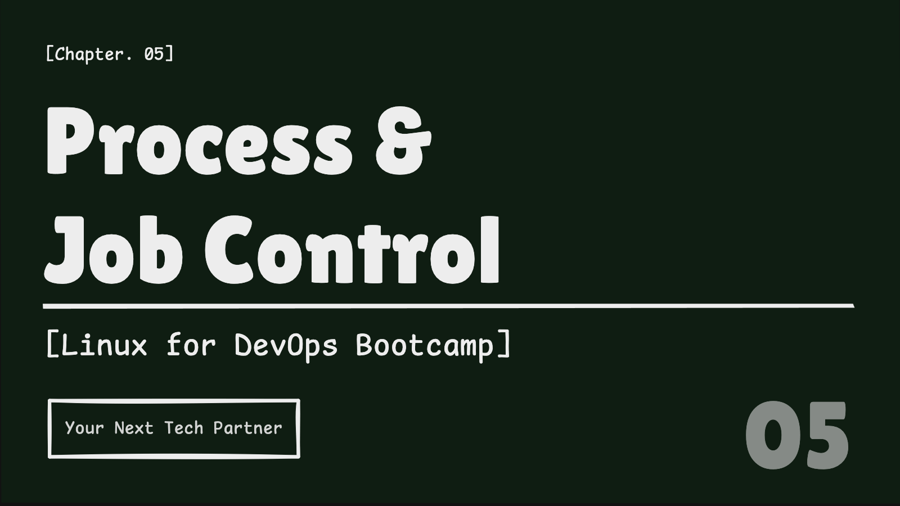
Files vs Processes
02
Notes
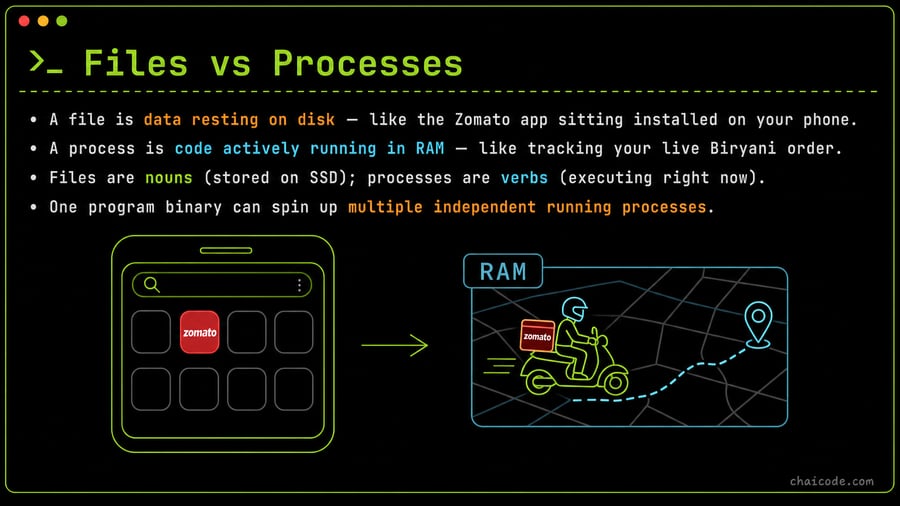
• A file is data resting on disk — like the Zomato app sitting installed on your phone.
• A process is code actively running in RAM — like tracking your live Biryani order.
• Files are nouns (stored on SSD); processes are verbs (executing right now).
• One program binary can spin up multiple independent running processes.
Every Process Has an Identity
03
Notes
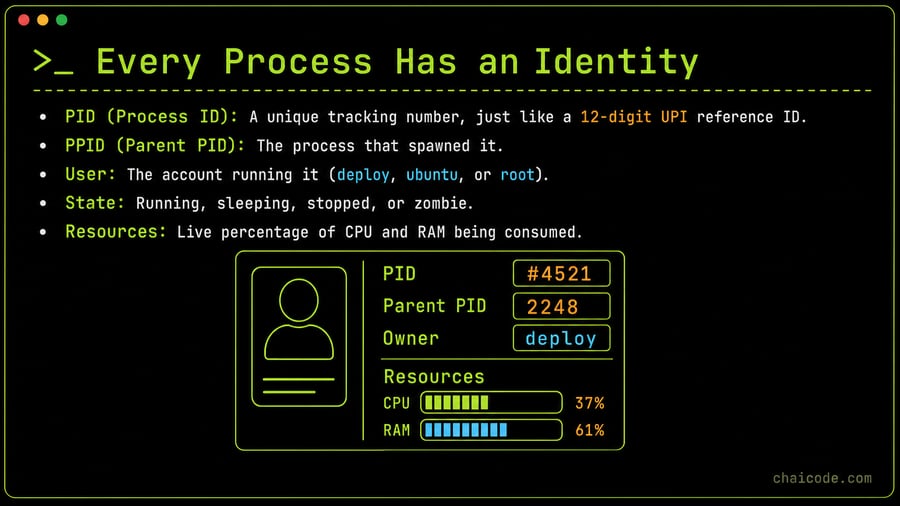
• PID (Process ID): A unique tracking number, just like a 12-digit UPI reference ID.
• PPID (Parent PID): The process that spawned it.
• User: The account running it (deploy, ubuntu, or root).
• State: Running, sleeping, stopped, or zombie.
• Resources: Live percentage of CPU and RAM being consumed.
The Family Tree: PID 1
04
Notes
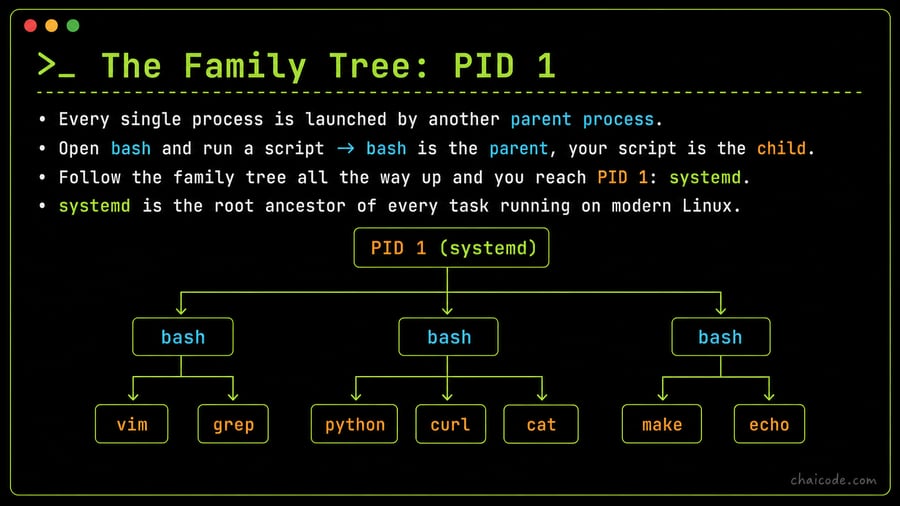
• Every single process is launched by another parent process.
• Open bash and run a script → bash is the parent, your script is the child.
• Follow the family tree all the way up and you reach PID 1: systemd.
• systemd is the root ancestor of every task running on modern Linux.
Taking a Snapshot with ps
05
Notes
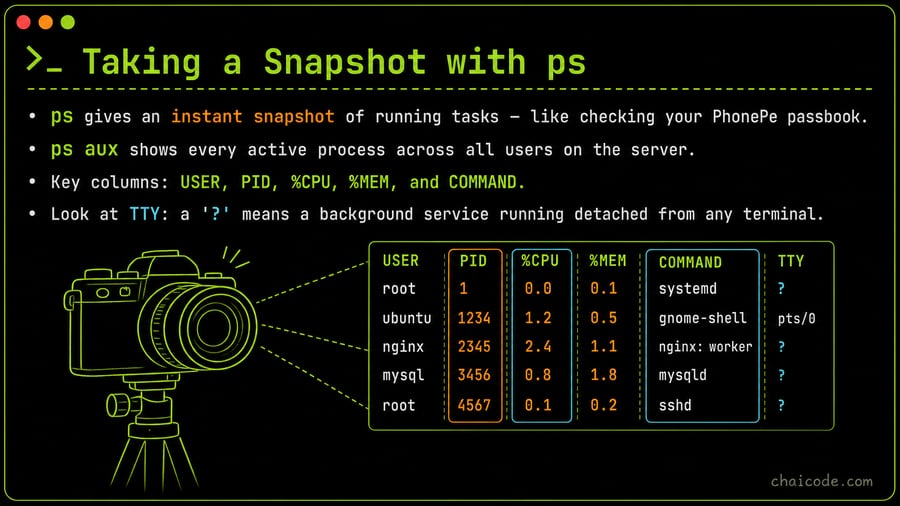
• ps gives an instant snapshot of running tasks — like checking your PhonePe passbook.
• ps aux shows every active process across all users on the server.
• Key columns: USER, PID, %CPU, %MEM, and COMMAND.
• Look at TTY: a '?' means a background service running detached from any terminal.
Live Monitoring with top & htop
06
Notes
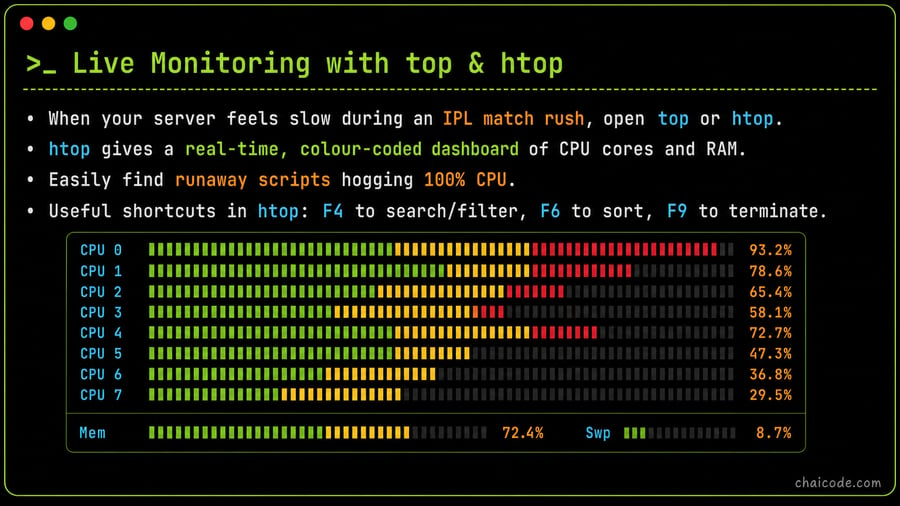
• When your server feels slow during an IPL match rush, open top or htop.
• htop gives a real-time, colour-coded dashboard of CPU cores and RAM.
• Easily find runaway scripts hogging 100% CPU.
• Useful shortcuts in htop: F4 to search/filter, F6 to sort, F9 to terminate.
Foreground vs Background
07
Notes
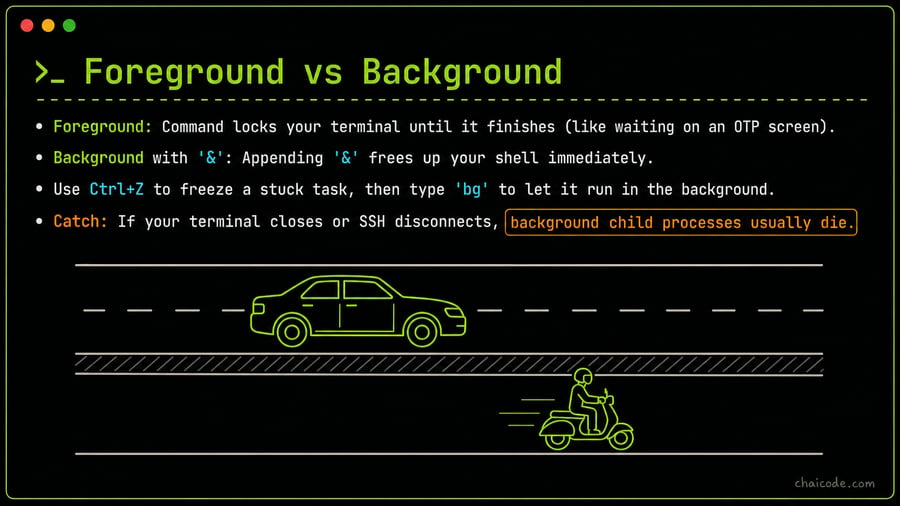
• Foreground: Command locks your terminal until it finishes (like waiting on an OTP screen).
• Background with '&': Appending '&' frees up your shell immediately.
• Use Ctrl+Z to freeze a stuck task, then type 'bg' to let it run in the background.
• Catch: If your terminal closes or SSH disconnects, background child processes usually die.
Controlling Processes: kill Signals
08
Notes
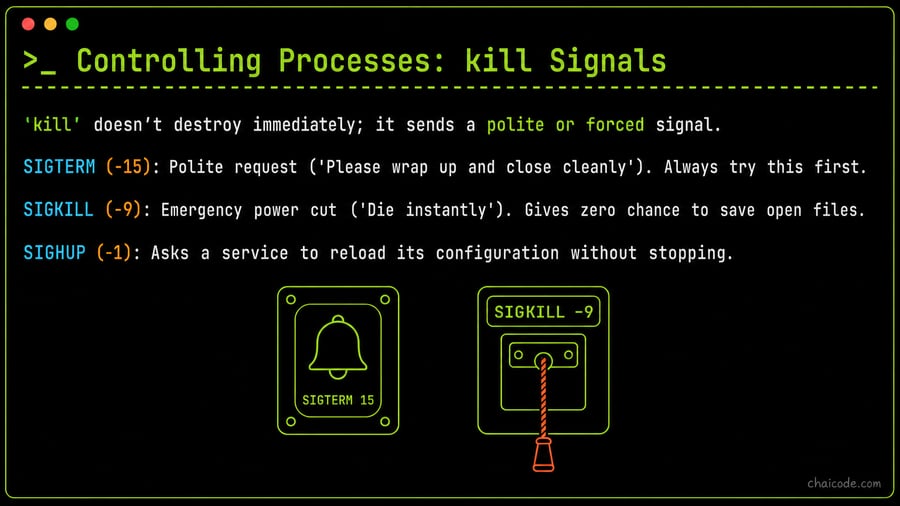
• 'kill' doesn't destroy immediately; it sends a polite or forced signal.
• SIGTERM (-15): Polite request ('Please wrap up and close cleanly'). Always try this first.
• SIGKILL (-9): Emergency power cut ('Die instantly'). Gives zero chance to save open files.
• SIGHUP (-1): Asks a service to reload its configuration without stopping.
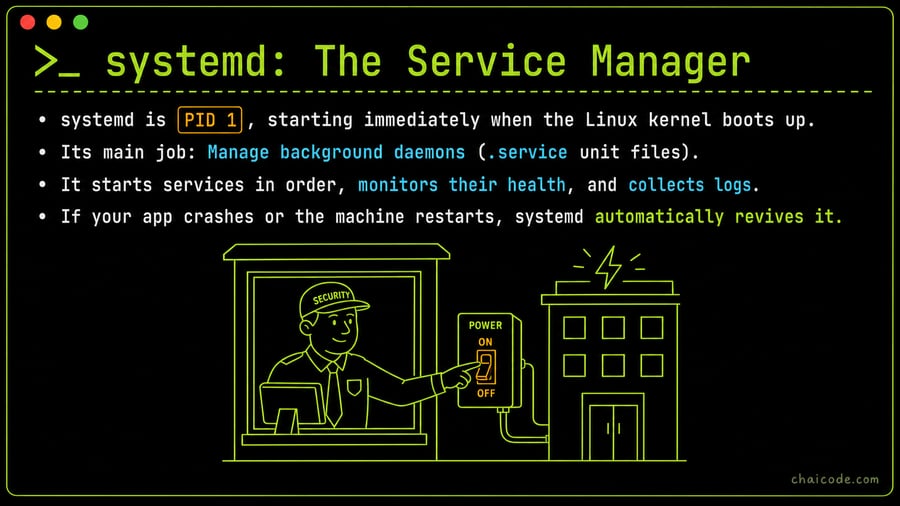
systemd: The Service Manager
09
Notes
• systemd is PID 1, starting immediately when the Linux kernel boots up.
• Its main job: Manage background daemons (.service unit files).
• It starts services in order, monitors their health, and collects logs.
• If your app crashes or the machine restarts, systemd automatically revives it.
Anatomy of a Unit File
10
![A neat 3-section blueprint document labeled [Unit], [Service], and [Install] with callout notes.](/cdn-cgi/image/width=900,format=auto,fit=scale-down/assets/5d3eb52b080aca8a463e2dc26aefb6b124ea9a47b629c1d76bae2d405dd42a19.png)
Notes
• Unit files live in /etc/systemd/system/ (e.g., myapp.service).
• [Unit]: Metadata, description, and startup order (e.g., After=network.target).
• [Service]: What command to run, under which user, and restart policies.
• [Install]: Defines run states — WantedBy=multi-user.target ensures it boots with the OS.
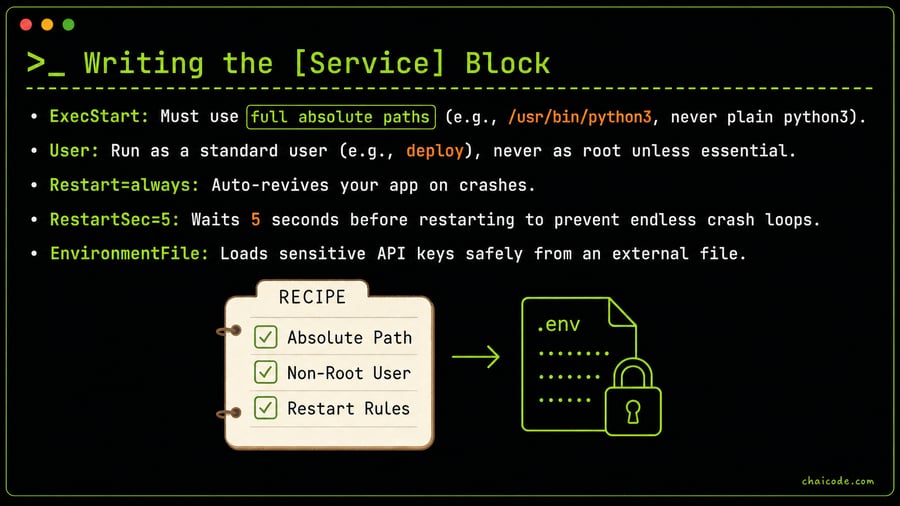
Writing the [Service] Block
11
Notes
• ExecStart: Must use full absolute paths (e.g., /usr/bin/python3, never plain python3).
• User: Run as a standard user (e.g., deploy), never as root unless essential.
• Restart=always: Auto-revives your app on crashes.
• RestartSec=5: Waits 5 seconds before restarting to prevent endless crash loops.
• EnvironmentFile: Loads sensitive API keys safely from an external file.
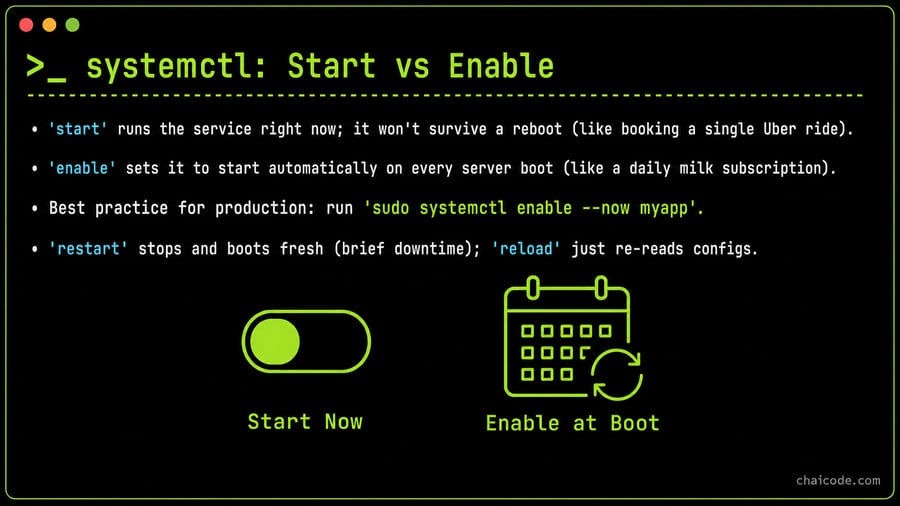
systemctl: Start vs Enable
12
Notes
• 'start' runs the service right now; it won't survive a reboot (like booking a single Uber ride).
• 'enable' sets it to start automatically on every server boot (like a daily milk subscription).
• Best practice for production: run 'sudo systemctl enable --now myapp'.
• 'restart' stops and boots fresh (brief downtime); 'reload' just re-reads configs.
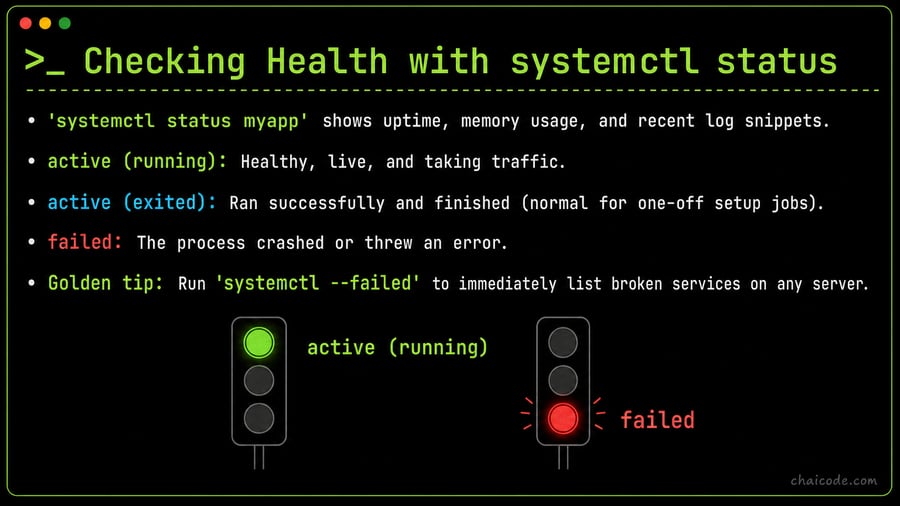
Checking Health with systemctl status
13
Notes
• 'systemctl status myapp' shows uptime, memory usage, and recent log snippets.
• active (running): Healthy, live, and taking traffic.
• active (exited): Ran successfully and finished (normal for one-off setup jobs).
• failed: The process crashed or threw an error.
• Golden tip: Run 'systemctl --failed' to immediately list broken services on any server.
Centralized Logs with journalctl
14
Notes
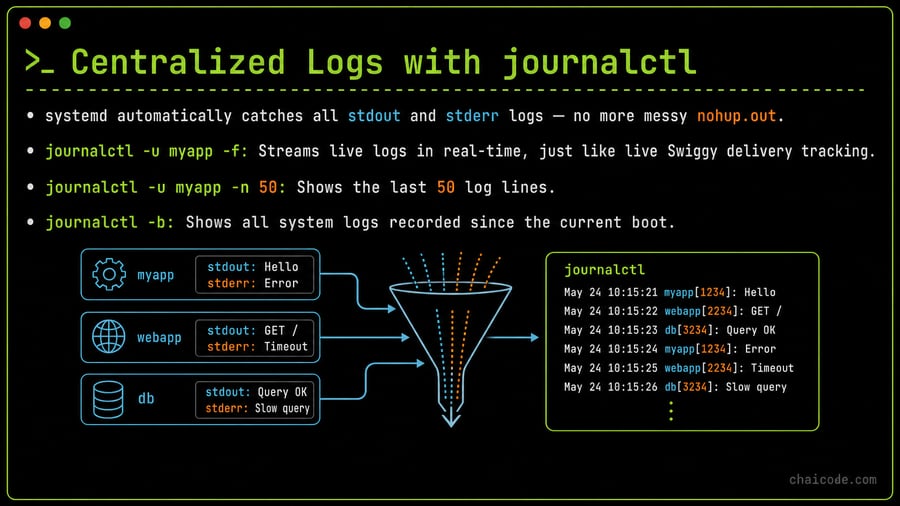
• systemd automatically catches all stdout and stderr logs — no more messy nohup.out.
• journalctl -u myapp -f: Streams live logs in real-time, just like live Swiggy delivery tracking.
• journalctl -u myapp -n 50: Shows the last 50 log lines.
• journalctl -b: Shows all system logs recorded since the current boot.
Common Mistakes
15
Pitfalls to Avoid
16
Notes
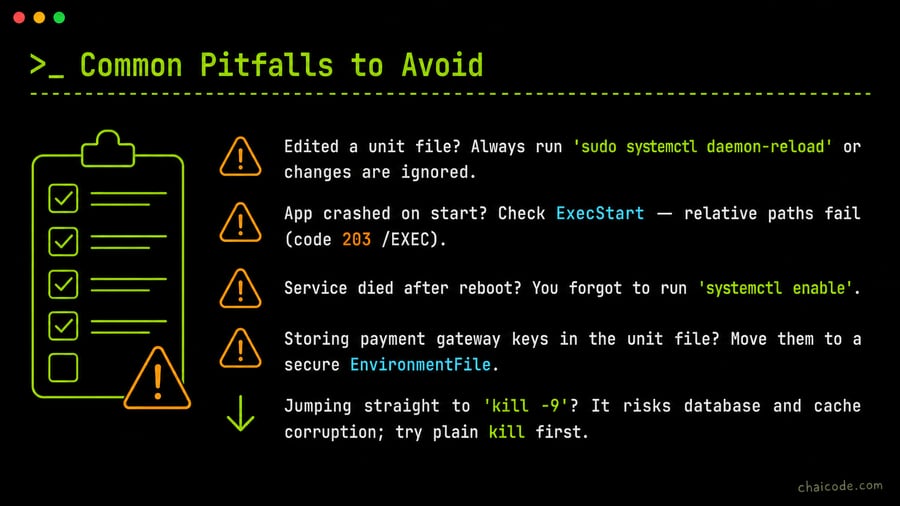
• Edited a unit file? Always run 'sudo systemctl daemon-reload' or changes are ignored.
• App crashed on start? Check ExecStart — relative paths fail (code 203/EXEC).
• Service died after reboot? You forgot to run 'systemctl enable'.
• Storing payment gateway keys in the unit file? Move them to a secure EnvironmentFile.
• Jumping straight to 'kill -9'? It risks database and cache corruption; try plain kill first.
Challenges
17
Challenge - 1
18

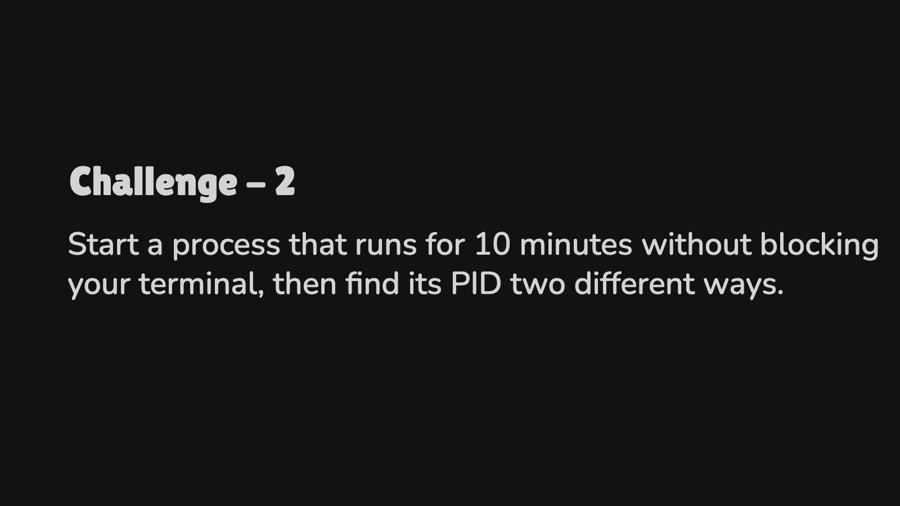
Challenge - 2
19
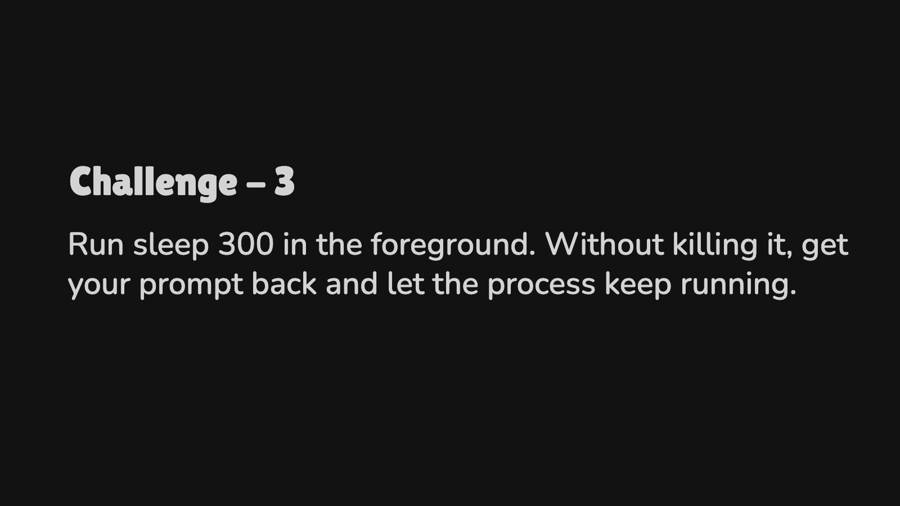
Challenge - 3
20
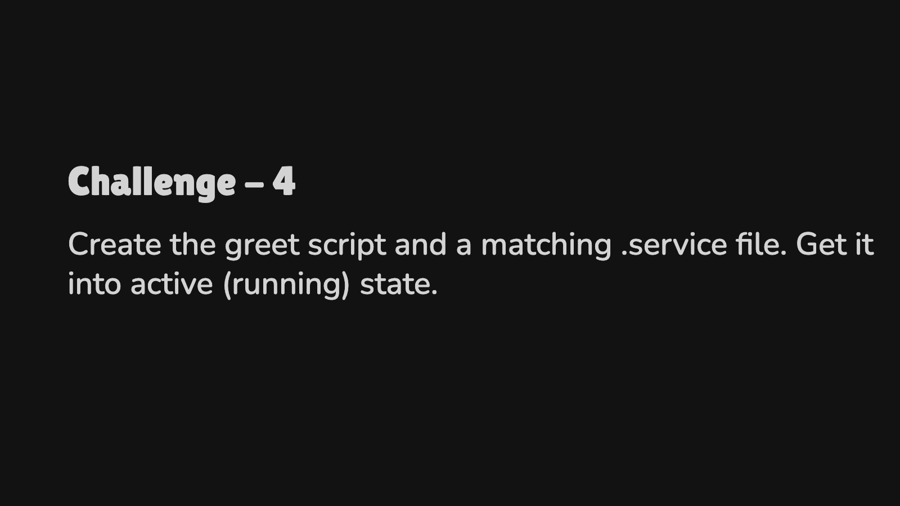
Challenge - 4
21
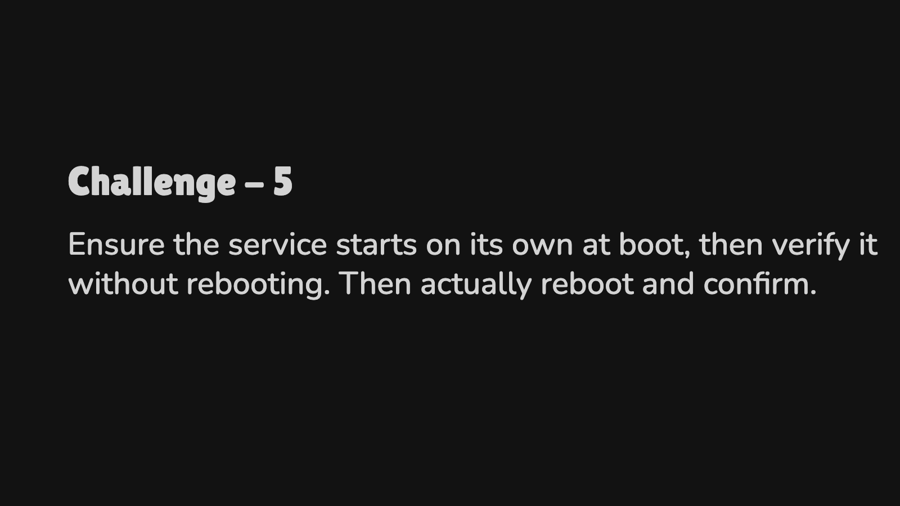
Challenge - 5
22
Challenge - 6
23
Bonus
24

Bonus
25